My Child At School (MCAS) is an online portal for parents that enables them to view their child’s pupil information at school in real-time via the MCAS app or a web browser.
The facility allows over time the child’s attendance, assessment, exams, timetable, class list, behaviour, reports and announcements to be accessed at any time. As well as pupil performance data, the portal also provides general information about school, such as the school calendar and any important announcements.
A short video below explains how to download the app and login to the website.
To use the system you will need to download the app and set up an account. Your school will e-mail you when they are ready for you to login to MCAS. If you have not received an e-mail with login details from the school then the school are not ready for you to use the system yet.
We are initially introducing the app with basic information about your child, however over time this system will provide a comprehensive view of your child’s journey through our schools.
FAQ Section
How do I access MCAS?
Parents can access the Parent Login screen in two ways:
From within the web browser type www.mychildatschool.com, this will open the Parent Login screen.
From the MyChildAtSchool mobile phone app, this will open the Parent Login screen.
Using a mobile, log in using the iPhone/Android app. (You will need to choose a PIN for the app as part of the login process.)
How do I sign up?
Parents can access the Parent Login screen in two ways:
From within the web browser type www.mychildatschool.com, this will open the Parent Login screen.
From the MyChildAtSchool mobile phone app, this will open the Parent Login screen.
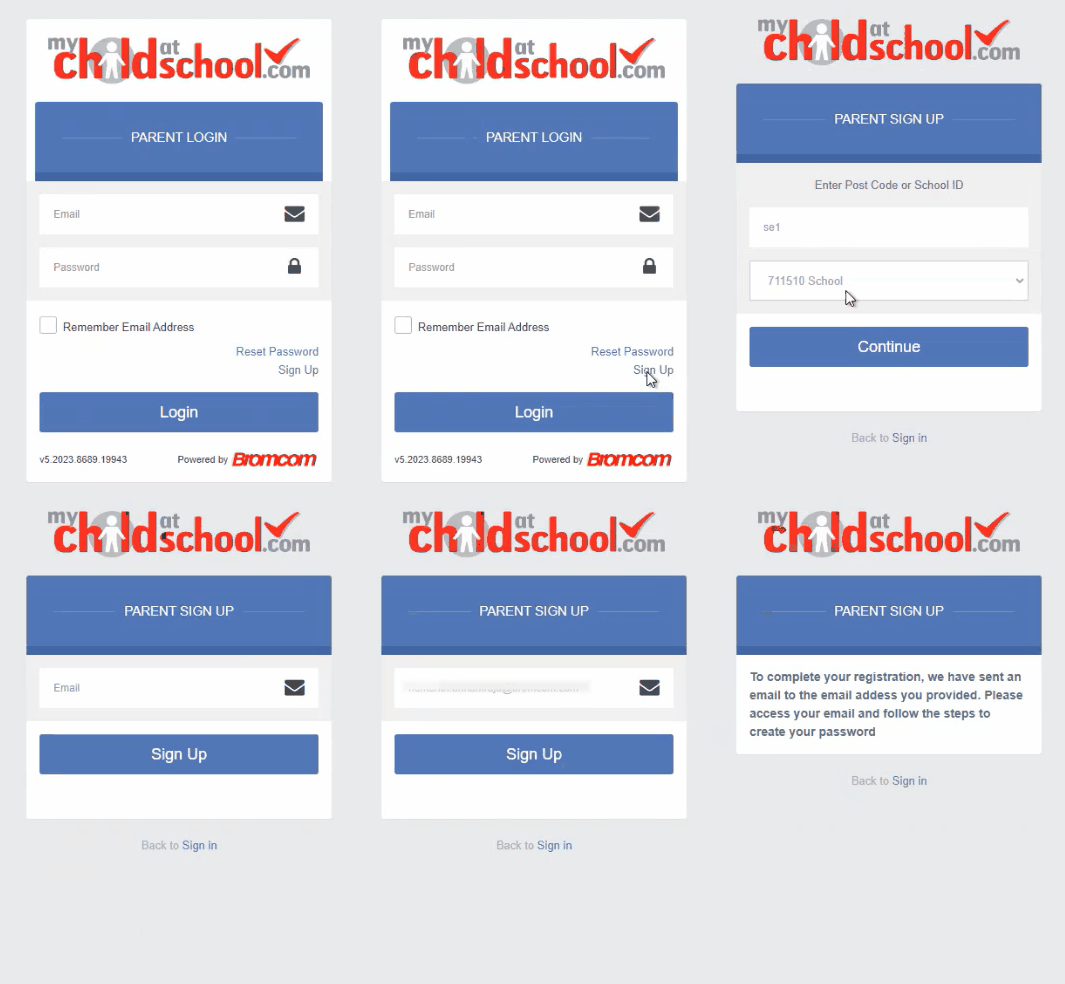
Once in the Parent Login screen parents should follow these steps:
Click on the Sign Up link in the Parent Login screen.
Enter the school’s Postcode and select the school from the list in the dropdown.
Click Continue.
Enter the registered email address.
Click Sign Up.
Parents will see the message ‘To complete your registration, we have sent an email to the email address you provided. Please access your email and follow the steps to create your password’.
Parents will receive an email from MyChildAtSchool with a link to a one time passcode.
Click on the link for the one time passcode.
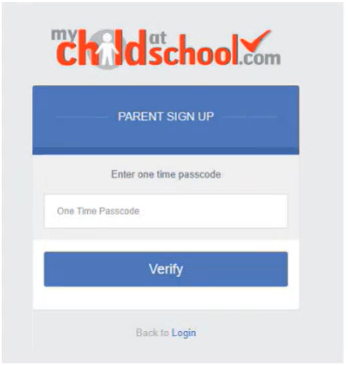
Enter the one time passcode.
Click Verify.
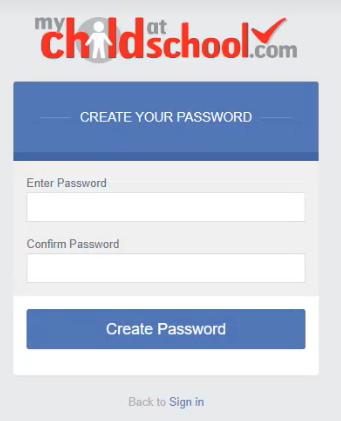
As soon as the one time passcode has been verified, parents will be prompted to enter a password.
Enter Password.
Confirm Password.
Click Create Password.
Once the password has been created, parents can login from within the web browser and type www.mychildatschool.com, or access the MyChildAtSchool mobile phone app, this will open the Parent Login screen.
If the parent has any problems, they should contact their child’s school office and send them a screenshot of any errors displayed. The more infomation provided, the quicker the issue it can be resolved.
Note: Parents should go back to the login screen if the email address already exists:
Enter email address and password to sign into your account.
Use Forgot Password if the user has forgotten their password.
I’ve forgotten my password?
Visit this site to recover your details or reset your password.
If this doesn’t work, please contact your school office.
Can I see my child at another school?
Yes, as long as your email address on the school records are the same, you will see children from different schools on the same account.
Some of our parents/carers will already have an MCAS account if they have children at other schools who are using it. If this is the case, you can add your child(ren) to your existing account.
Login to your existing MCAS app or use the online browser
2. Click on the Accounts button at the bottom of the app
3. Click the Add ACcount button in the top right hand corner
4. Login using your newly created Sackville account using the School ID (13395) and your new account email and password.
5. Your child should then appear on the app
6. To switch between your children you can press the menu bottom at the top left.
I already have an MCAS account from another school, How do I add another child to it?
MCAS works across multiple schools, as long as you have provided the same e-mail address to each school you are able to use one login to access all of your children’s schools.
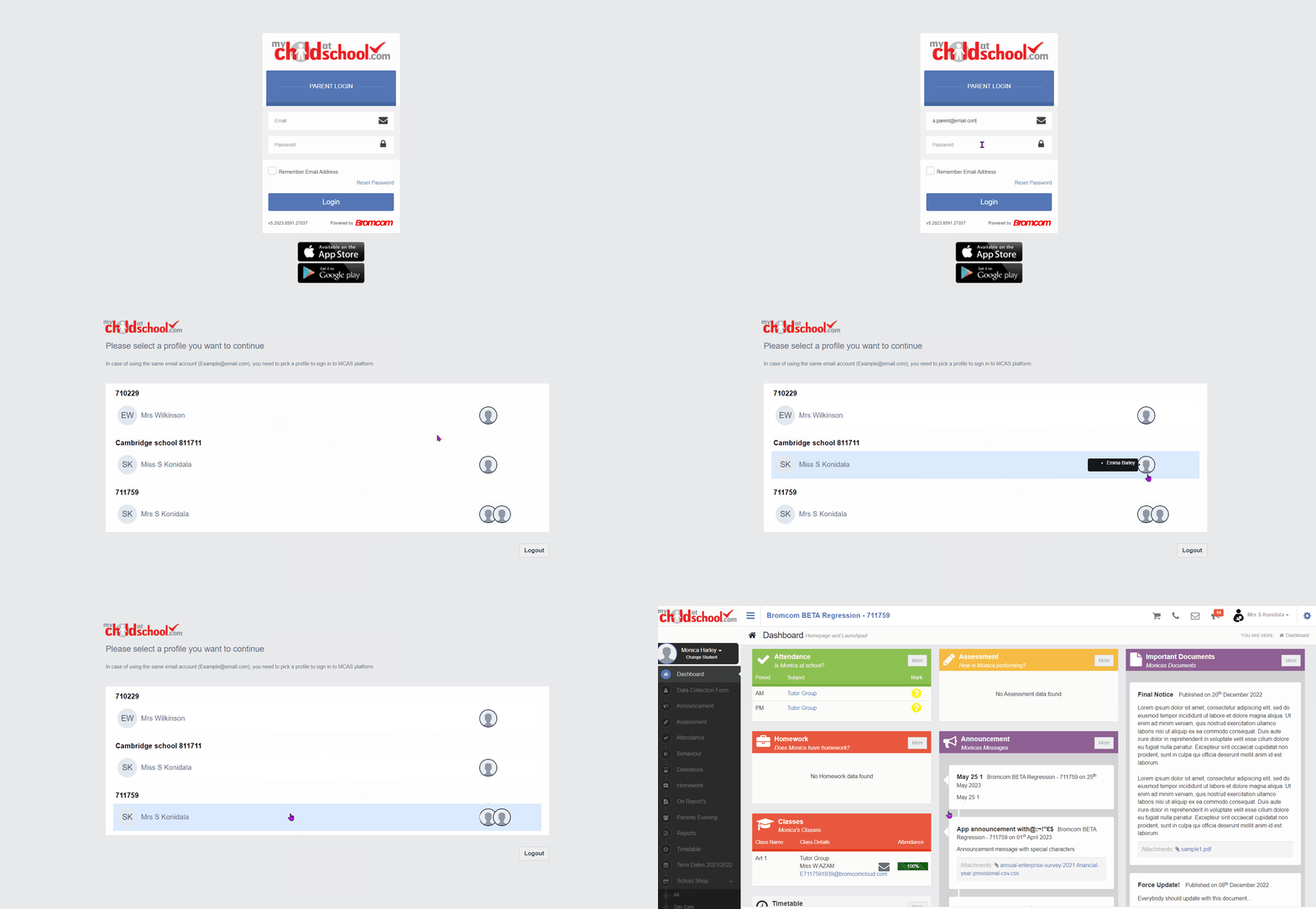
If parents have more than one Profile using the same Email Address, a popup will appear, select the Profile they wish to use to continue to the Dashboard. Students associated with each Profile are displayed on the right-hand side. Note: Hover over the student icons on the right hand side to see the student’s names associated with each Profile.
How to select the MCAS Dashboard
The MCAS Dashboard allows parents to view multiple Student MCAS accounts in one place. All Students linked to a parent account will appear in the top left dropdown in the Dashboard with School and Student Name. This dropdown allows parents to switch between different Student accounts. For the MCAS Desktop view in the example image below this shows the selected Student in RED.
For more information, review this parent guide, starting at page 3.
Using Data Collection Form on MCAS you can edit, delete and add selected details of our children’s and your personal details.
Addresses, Email Address, Mobile Numbers etc.
Some details such as Legal Name cannot be changed on MCAS. Please email your school office or house team in the first instance, and if we need further details such as supporting documents, we will let you know.
Any amendments will first be approved by the School administration staff before any records are permanently updated. Amendments that are not approved will revert back to their original state. There may be a delay in approval, and we may contact you if we need clarification on details.
I’m not recieving pop-up notifications in the MCAS App
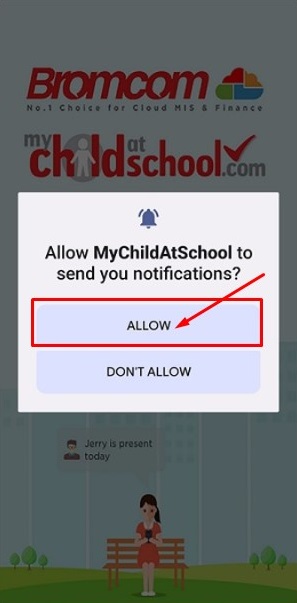
When you first install the app you are asked to allow notifications. We recommend that you do so that your app alerts you to new messages.
If you need to adjust your settings later on, depending on the device you are using, you will need to go Settings > Notifications, and activate or allow the MCAS App to provide you with notifications.
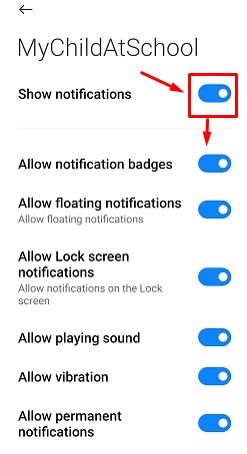
Here is an example from an Android phone. The user has gone to Settings for the phone > Notifications > Search for MyChildatSchool and from there, turn on notifications and fine-tune how you want them to work.
How do I know if I have a new notification in the app?
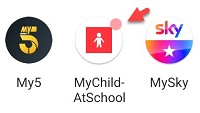
Like most apps, you will see a red dot appear next to the app’s icon to signify that there is a new notification message to read.
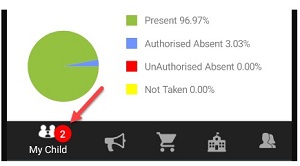
In the app itself, the number of unread messages will appear next to the messages icon. On the web view, it will appear on top of the email icon.
How do I check the details and my child’s details on the system are correct?
Go to the Data Collection menu on the left-hand side to see the details we hold for you and your child/children.
You can submit changes to us using the same Data Collection screen. See here for how to do this.
You cannot check the details of the other contacts linked to your child/children. Those details are only available to the other contact.
As contacts we both share the same email address. Is that a problem?
No, that’s absolutely fine. When you log in with a shared email you will see a message that asks you to pick the profile/the contact name you want to use to view the data.
Once logged in, you will be able to change the profile (which contact you are logged in as) by clicking on the name in the top right, and selecting change profile.
I get the message ‘Incorrect Email Address’ when I attempt to login. What should I do?
You should contact the school, so we can update the contact record for you with the correct email address.
How to use MCAS to Pay for School Dinners after Easter 2025
Adding payments Go to My Child>Dinner. The blue wallet at the top right of the Dinner screen displays the available Dinner Money balance. Click on the Add Dinner Money button. Enter Amount you would like to add to the dinner wallet and click Add to Basket.
Dinner>Add Dinner Money>Amount>Add to Basket
Once you have added it to the Basket, you will be taken automatically to the Shopping Basket screen where you can click Checkout. Select a Payment Option from the dropdown and click Next.
This will take you to the Order Summary screen to complete payment
How to view and Update your Personal Data and your Child’s Data
You can update your personal data and the data of your child/children using the Data Collection menu in MCAS. Please refer to the following link for guidance on this. Note, we have not enabled all the features and types of data that can be viewed or edited in these screens.